Get ISO date format output from Google Sheets

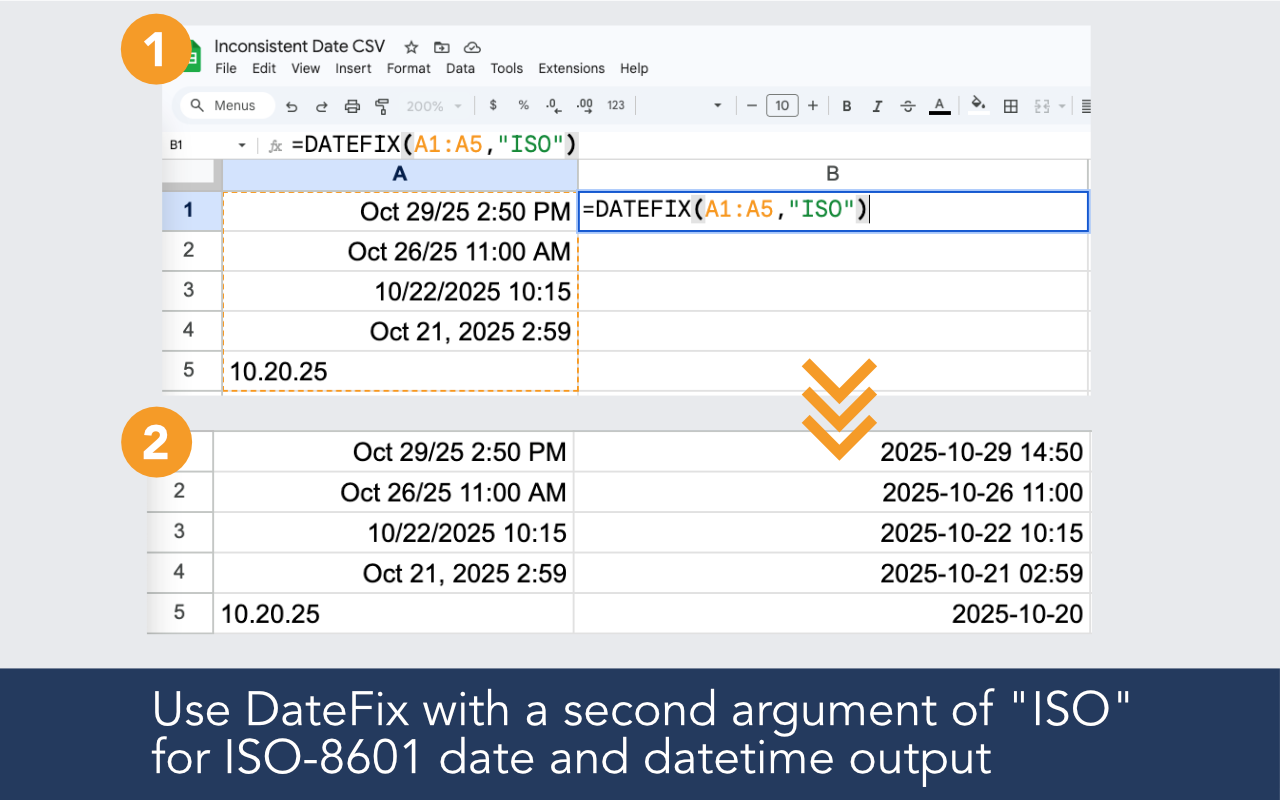
DateFix converts any text date input into clean ISO 8601 formatted output with a single formula. Ideal for preparing data for APIs, databases, and downstream systems that require a consistent date format.

Get ISO date format output from Google Sheets

See how DateFix outputs ISO format dates

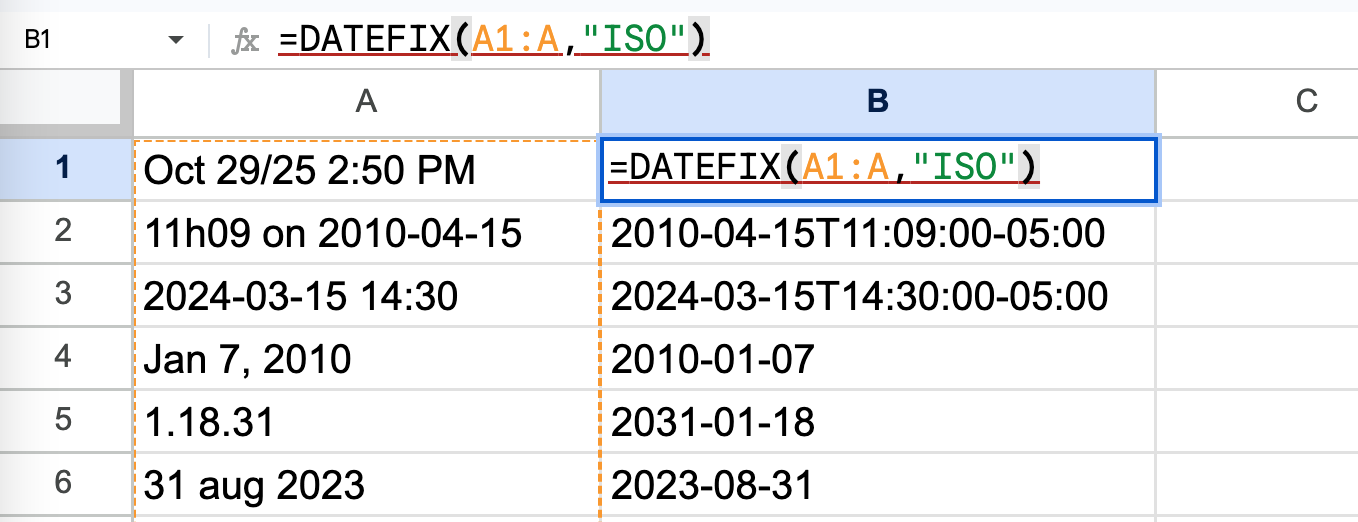
Google Sheets does not output ISO 8601 by default. DateFix converts any date input into clean ISO formatted output with one formula.

Use DateFix to clean and normalize messy spreadsheet dates

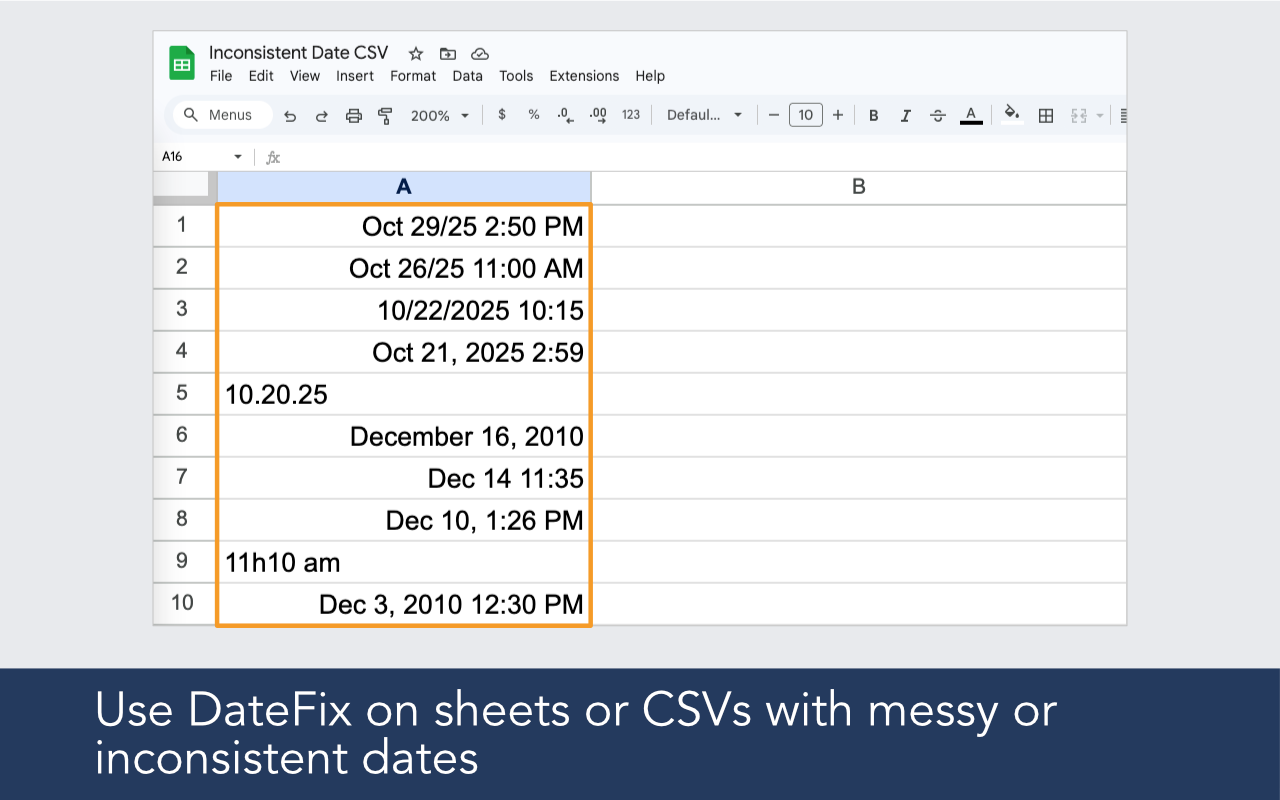
Built for imported data, broken date columns, regional ambiguity, and real-world spreadsheets that need reliable date output.

Output ISO 8601 format in one step

Use =DATEFIX(A2,"ISO") to return clean YYYY-MM-DD output from any date input, regardless of the original format.

Works on any input format

DateFix accepts dates in any format and converts them to ISO output. Mixed formats, regional variations, and text strings all work.

Clean an entire column at once

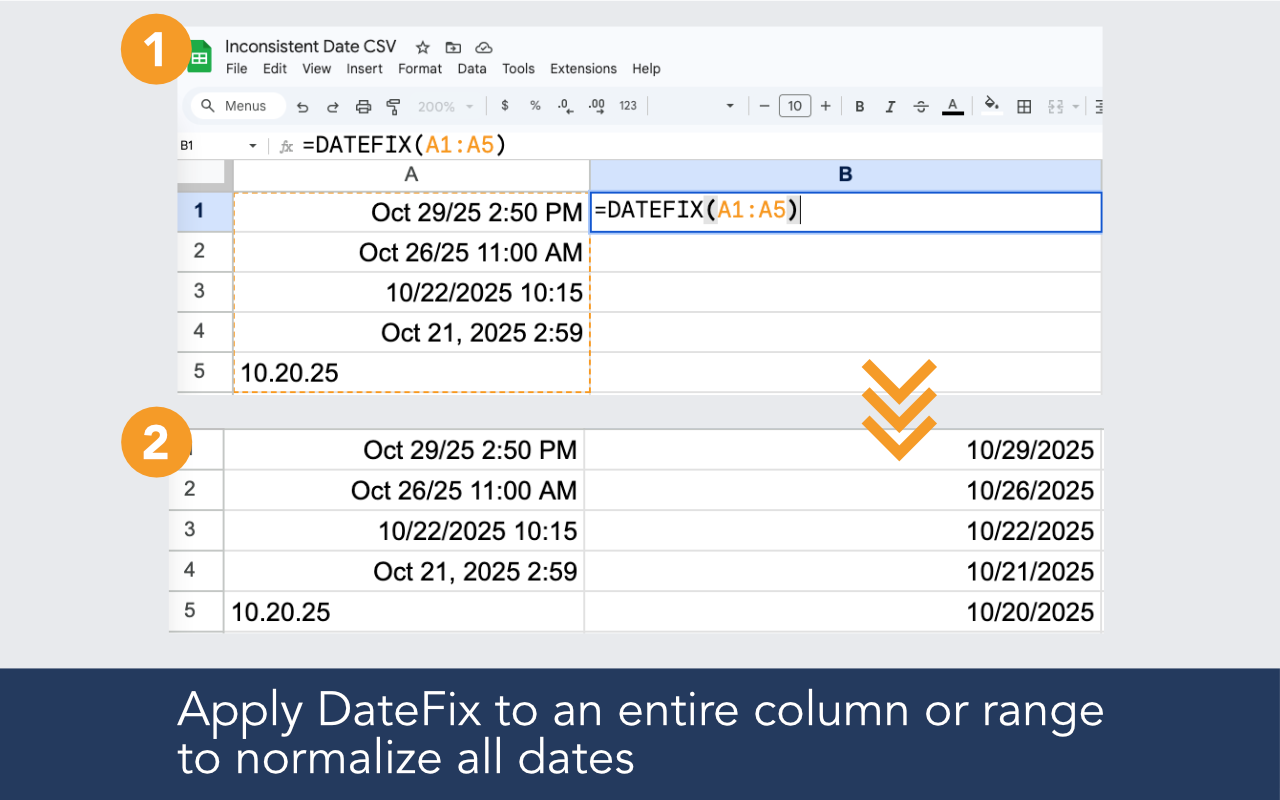
Run DateFix over a range to produce an ISO formatted output column ready for export or paste into another system.

Combine with datetime output

Use =DATEFIX(A2,"ISO") to produce full ISO datetime strings where needed.
How to use DateFix

Install the add-on, open it in your sheet, and use a simple formula in a new column.

Example formulas

=DATEFIX(A2:A100)

=DATEFIX(A2,"ISO")

=DATEFIX(A2,,"US")

Support & FAQs

ISO 8601 date format is YYYY-MM-DD, for example 2024-04-15. It is the standard format used by most APIs, databases, and data systems because it is unambiguous and sorts correctly as text.

Yes. DateFix processes each cell individually and outputs ISO format regardless of the input format in each cell. Pass "ISO" as the second argument: =DATEFIX(A2:A100,"ISO").

Yes. When the input includes a time, =DATEFIX(A2,"ISO") outputs a full ISO 8601 datetime string with seconds and timezone offset, for example 2024-04-15T14:30:00-04:00. Date-only inputs return date-only output like 2024-04-15.

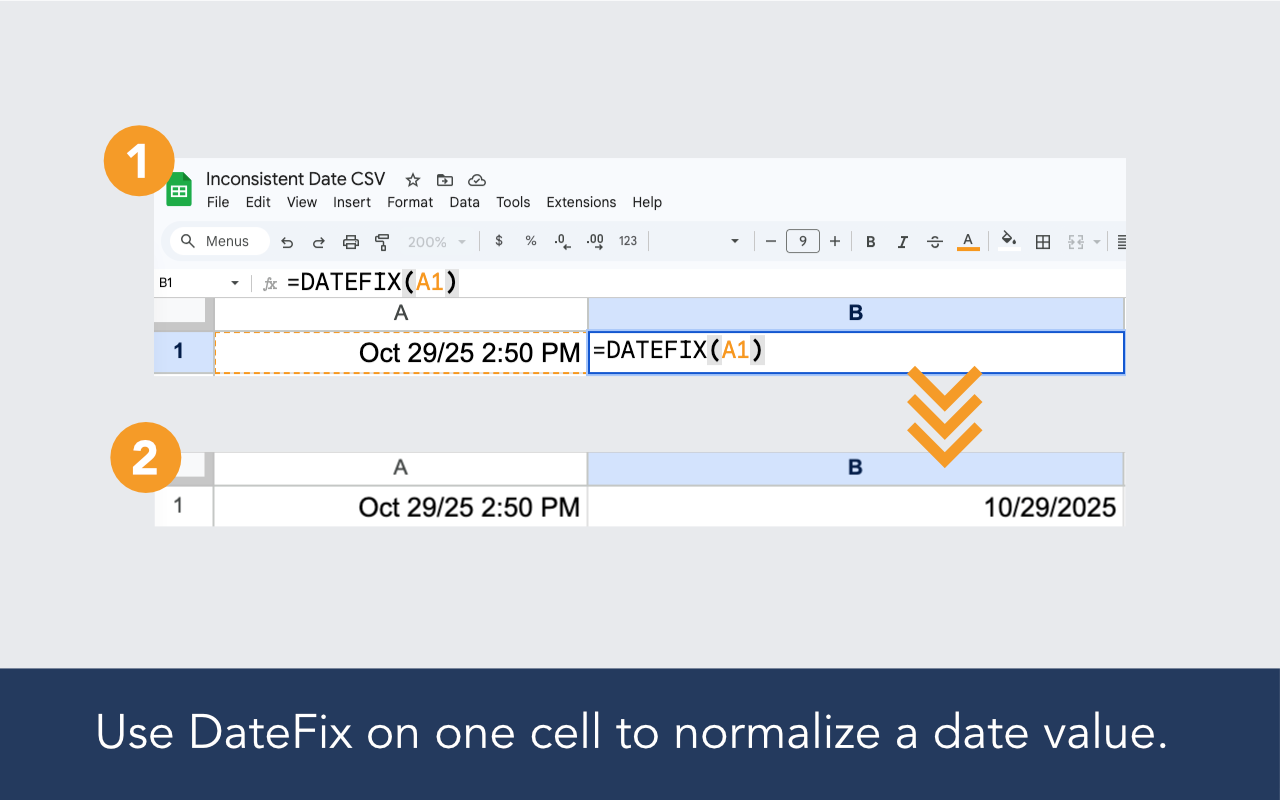
DateFix is a Google Sheets add-on that helps clean and normalize messy or inconsistent date values with a simple custom function like =DATEFIX(A2:A10).

DateFix is free to use up to 100 rows per day. If that's insufficient, we offer an unlimited version for $19.99 / month, which allows an unlimited number of DateFix calls. You may upgrade within the DateFix add-on by clicking the upgrade button from the sidebar. Upgraded subscriptions may be cancelled at any time.

To parse an ISO date string in Google Sheets, use =DATEFIX(A2). DateFix recognizes ISO 8601 format automatically and converts it to a real date value that Google Sheets can sort, filter, and use in formulas. No additional arguments are needed for standard YYYY-MM-DD input.

DATEVALUE is inconsistent with ISO 8601 format — it works in some locales and fails in others depending on your Google Sheets regional settings. DateFix handles ISO 8601 input reliably regardless of locale, and also accepts mixed formats, regional date styles, and datetime strings that DATEVALUE cannot parse.

ISO 8601 date format examples: date only — 2024-04-15; date and time — 2024-04-15 14:30; date with timezone — 2024-04-15T14:30:00Z. The format always uses YYYY-MM-DD order, which means it sorts correctly as text and is unambiguous regardless of region.

Changing the date format in Google Sheets (via Format > Number) only affects how a real date value is displayed — it has no effect on dates stored as text. If your dates were imported as text strings, formatting them as dates will not change anything. DateFix converts the underlying text value into a real date so that formatting, sorting, filtering, and formulas all work correctly.

DateFix is a Google Sheets add-on and is not currently available for Excel. If you are working in Excel and need to convert text dates to ISO format, you can import your XLS or CSV into Google Sheets and then install DateFix from the Google Workspace Marketplace.

Still have questions? Get in touch
arrow-up icon